

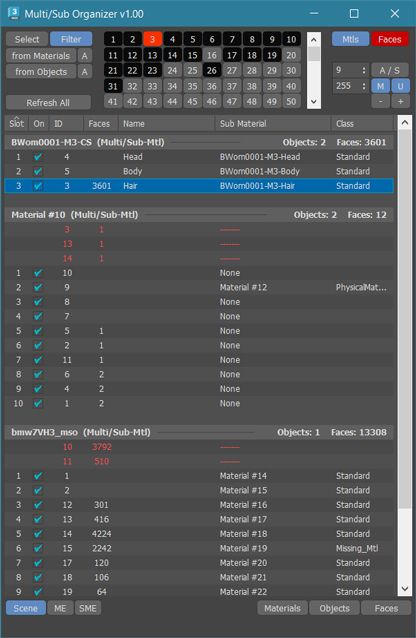
MultiSub Organizer is an advanced tool designed to organize large Multi/Sub-Object materials alongside their linked Face IDs within EditPoly or EditMesh
Key Features:
Synchronized ID Updates:
- Apply a new ID to both the material and the linked Face IDs simultaneously, ensuring your geometry and shaders stay perfectly in sync.
Flexible Sorting:
- Organize your materials list by Slot, ID, Name, Material Name, or Material Class
- Apply new sort to MultiSub Material with one click
Smart Filtering:
- Filter or select materials based on your current Object Selection
- Filter or select materials currently active in the Material Editor
Bidirectional Selection:
- Select faces by ID directly from the select items - click the Faces button (right-bottom corner)
- Find and select objects linked with material- Select faces by selected IDs (select item and press Faces button)
Statistics & Diagnostics
- Face Counts: See the number of faces assigned to each ID
- Object Counts: View how many objects are linked to each material
- Error Tracking: Unassigned Face IDs are highlighted in red
The tool can list multiple Multi/Sub-Object materials simultaneously. However, for applying new IDs, it is recommended to work with a single Multi/Sub-Object material at a time.
(Note: The tool will highlight the ID buttons for IDs used within the currently active Multi/Sub-Object material only.)
Recommended Workflow
- Load Material: Select a material in the Material Editor and click 'From Material'
- Set Target (Mtls/Faces):
- Check Mtls (top-right) to apply changes to the Multi/Sub-Object materials
- Check Faces (top-right) to apply changes to the Face IDs on the objects - Select ID: Select on list or right-click on ID number buttons or A/C button
- Assign ID: Select a list item and press the desired ID Number button (top-middle)
- Organize List: To Sort by ID, simply click the ID column header
- Sync Material: To Apply Sort, right-click the list and choose 'Apply sort to material' from the menu
Comments (0)
Comment policy