ScriptSpot

Script

Straighten Edge

By Royal Ghost · 2006-10-21

Version
2.0.0
Version requirement
2025+
Votes
69
Download
Download
Description


Straighten Edge (maxscript) allows projecting and placing selected vertices/edges on the given straight line on the Editable Poly object, Edit Poly modifier, and Editable Spline & Line objects.


When the SHIFT key is pressed, vertices/edges will be straightened with axis constraints
in the chosen Reference Coordinate Systems. For how to use axis constraints, please read the 3ds Max help Using the Axis Constraints chapter.

When the ALT key is pressed, vertices/edges will be straightened and normalized in their distance/lengths.
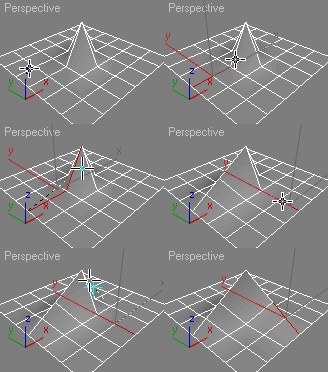
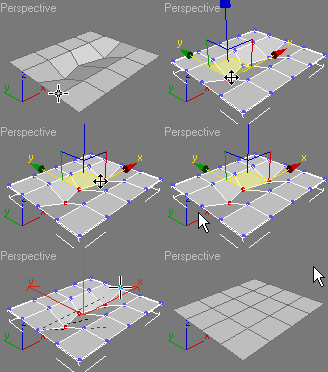
The script works with the following objects / modifiers:


  • Editable Poly object
  • Edit Poly modifier
  • Editable Spline object
  • Line object

    Supported Reference Coordinate Systems:

  • World
  • Working Pivot
  • Parent
  • Screen

Additional Info

2.0.0 (03.04.2026) for 3ds Max 2025+ 

  • Rewritten and improved projection to line calculations 
  • Added support for constraints by axes of Working pivot, Parent, Screen, World 
  • Improved normalize calculations Removed script “Straighten Edge (Spline Undo)”, it not needed in modern versions of 3ds Max
  • Cleaned up and refactored code
Videos

Tags: modeling, spline, Poly, edge, vertex, straighten

Comments (28)

Great script for every day!

Wanderer82 · 2020-04-27

Thank you very much for your script, I always use it.

Спасибо большое за Ваш скрипт. Постоянно им пользуюсь!

themaxxer · 2015-01-26

any news about axis constraints...?
if this would work I would use the script every day! :)
thanks.

themaxxer

Royal Ghost · 2019-07-23

.

appius · 2014-10-01

same for me. the shift key doesn't work.

Royal Ghost · 2014-10-02

Axis constraints not work properly, please do not use it. I have no time and experiences of math to fix it. :(

themaxxer · 2013-09-23

the constraint thing is not working for me either

thanks
themaxxer

Axis Constraint

grasshopper · 2013-09-23

I am still having problems using the constraint function. When I hold shift it no longer functions.

It is working on my home PC but not at work. Both Windows 7 both Max 2013. Any clues as to why? thanks

Cobra · 2011-10-02

Hi everyone,

I am having a problem when trying to use this script.
In the animated diagram on the left above it shows it aligns the points perfectly, I am trying this to a peice of track I am editing and it doesn't align it the way it is shown above, actually the points get all messed up.
Please can someone help me.

Thank you

Royal Ghost · 2011-10-03

Cobra: I can't understand what the problem. Can you send me video or example with this problem?

Pen Tablet

Fredblub · 2011-06-28

Hi there,
I'm working Max 2010, using a pen tablet full time 'cause i find it more natural than my 2 fingers waiting to click above theirs buttons. It works fine in every manipulation I do, except for your great script that I use a lot : once I've selected my verteces and choosen your tool, it's almost impossible to catch the end verteces, unless you click for a dozen times (if lucky). No settings of the tablet would change that matter of fact. I'm using an Intuos 4L last generation.
Any clue?
Thanks
Fredblub

Tablet Edition

Royal Ghost · 2011-06-29

Fredblub: It seems another :/ max bug. Seems pickPoint maxscript function doesn't work properly. I created "Tablet Edition" where replace broken pickPoint with another working function. Please try attached sedget.mcr!

Also I recommend submit as a bug to Autodesk about this broken function.

p.s. About not proper work of constraint mode - sorry, still no fixed

Fredblub · 2011-07-11

Hey, thanks a lot! The replaced fonction works great!
No regret for the lost rubber band since I do not have to drop my pen for the moose anymore.
You did that fast and efficiently
Thanks again!

Select only vertices/edges and not the end points + constrain?

Playdo · 2010-11-20

Hi Royal Ghost. I've been looking for a script similar to this for a long time. Is it possible to script it so that you only select the line of vertices or edges and then run the script? So instead of having to click on the two end vertices, it will just straighten between the end points of the line. And to also be able to constrain it to Edge/Face?

I know that this is what Straighten in Graphite Tools, Loop Tools does, but unfortunately you can not constrain it to Edge/Face mode, which would be so useful.

I'm not a coder, so I've looked everywhere for this script but have not found one.

Royal Ghost · 2010-09-03

I have found why vertexes are not straighten when axis constraint mode active. I need more time to fix algorithm of straighten to get it work. :(

grasshopper · 2010-09-02

Thanks for the script it's really handy.

Like Royal Ghost I to am having problems with the axis constraint to, it just doesn't want snap to the vertex's. I am using max design 2010.

Cobra · 2010-08-01

Hi Everyone,

I can't get this script to work at all.
I am using Max 8

Can someone help me :)

Thank you.

jsrocha · 2010-06-27

Hi Royal ghost, first of all, thanks for this script, is a very handy one. I have two comments: first, for me is very difficult to pick the vertices when i´m holding shift key, for axys constrain. I need to click several times to get the vertices selected. It happens to you too? Am i doing something wrong? second, when i use axis contrain (z for instance), i noticed that the vertices doesn´t get perfectly aligned, i need to run the script again to get better results (not perfect yet, but the diference is very subtle). Have you noticed too?
ok man, that´s it, thanks again for this very useful script!
cheers

Jsrocha - Brasil

Royal Ghost · 2010-07-26

Hello jsrocha. I have checked your remarks and have found:
1. I have the same problems with Shift key, it seems to me it is problem of max. Perhaps the solve of this problem will be the change Shift with something else.
2. I can't reproduce alignment problem. Probably it is connected with non commited vertexes transformations. Could u share a simple scene with this problem?

I'm glad that you have found this script useful. :)

jsrocha · 2010-07-30

Hi Royal Ghost, thanks for your reply. About the shift key problem, is it possible to separate the script in two? i mean, one for simple alignment, and other to alignment with axis constrain. Instead of have to press another key, you can have another script to do that. What do you think about it?
The alignment problem is a minor one, but i´ve made a simple max scene where you can see what i´m talking about. In the scene are two extruded arc (one is the copy of another), which i moved some vertices in z. go to the front viewport, and then you´ll see that the arc at left doesn´t have the edges perfectly aligned (there´s a spline connecting the vertices, helping to see the problem). The arc at right is much better aligned (maybe not perfect), cause i used the script twice on that arc. the max file is attached below..
thanks man, i really hope you can find a solution to the shift key problem, cause i can´t live without this script anymore :-)
best regards,

Jsrocha

Attachments

masquerade · 2008-10-19

Yes I realized that afterward, in my config,none of them was selected so if I recall correct, it didnt worked until I select one of the supported snap types.

Anyway, I will try the new version as soon as I can,

well done and thank you.

Royal Ghost · 2008-10-19

Masquerade thanks for comment they are welcome.
You are mistaken while thinking that for the proper work vertex snap is needed. You can use any type of snaps (vertex,pivot,face...) but it is important that it will be 3D.
I have taken into consideration your suggestion and fixed script. Now snap mode and type restored after straighten. When straighting begins snap mode changes to active and snap type to 3D.
Also this beta includes other changes:
Added restrictions of straight. Use SHIFT key to config it.

http://www.veda3d.com/files/sEdge1.4.0beta.rar

Royal Ghost | veda3d.com

masquerade · 2008-10-19

Thanks Royal Ghost, It is a very nice tool. and turns out it is very useful.

Though in a rush, It took me a while to understand that it uses 3d snap and vertex snap must be checked in 3d snap settings. (I realized that it was already written in the comments after I figured it out myself) It also turns off snap mode even if you are already working with 3d snap. I myself not a frequent snap user while editing, but it may be nicer if it looks for the current snap settings and options, checks true the vertex option,stores it , checks true the vertex option and restores back after the straightening.

Dont get me wrong, I just try to help you fool-proofing that nice script, thank you.


Royal Ghost · 2008-05-17

IN_human, снап включается то скриптом автоматом, а его тип удобнее самому выбирать.
Насчет normalize, уже давно сам хочу сделать но все никак не сяду :)
Пасиб за +1 ;)

Royal Ghost | veda3d.com

IN_human · 2008-05-18

+1

В некоторых ситуациях бывает полезней PolyBoost, тот только с лупами дружит.

По поводу снапов - их помоему надо через скрипт какраз включать, по фейсам и по вершинам.

Заодно подсмотрю как мышу скриптовать )))

Хотелось бы иметь опциональную возможность задавать рёбрам равную длину.

С нетерпением жду инструметов EdgesAlongSpline, EdgesParallel2Surface и EdgesTangentially2Faces )))

Royal Ghost · 2008-05-16

abyjoe, you must use 3D snap to get right point's coordinates

RaZeR, tnx :)

Royal Ghost | http://veda3d.com

RaZeR · 2008-05-09

молодца!

abyjoe · 2008-05-07

doesnt work for me... the selected vertices get alined only in X coordinate and not in line with the 2 picked Points but somewhere else on the viewport...