 By miauu · 2015-06-22
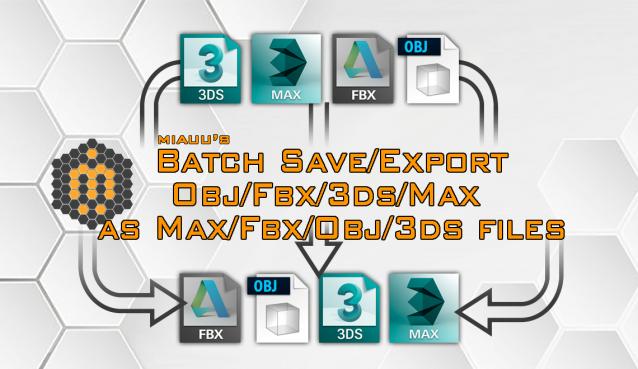
Batch save or export selected .obj, .fbx, .3ds or .max files an .obj, .fbx, .3ds, .max files.
- The UI can be resized.
- Only the files, whose checkboxes are turned ON will be processed and saved as .max files.
- The [ Get Directory ] button allows you to select all OBJ/FBX/3DS/MAX files in the selected folder. If the folder has sub-folders the script will ask you whether you want to load OBJ/FBX/3DS/MAX files in the sub-folders.
- The [ Get File(s) ] button allows you to select OBJ/FBX/3DS/MAX files. Multiple selection is available - you can open a folder and select several files at once.
- When you click on the file name in the list with right mouse button, the folder where the file is placed will be opened in the Windows Explorer.
- When you click on the file name in the list with middle mouse button that file will be removed from the list.
- The [ Show Full Path ] checkbox allows you to see the full path to the files or only the name of the files (by default the names will be shown).
- You can choose the 3dsMax version to which to save the MAX files.

 crystal3d · 2022-10-11