
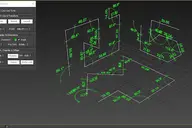
=====================================================
RAYCAST WHEEL MASTER v1.4 - USER GUIDE
=====================================================
OVERVIEW
Raycast Wheel Master is an advanced 3ds Max MAXScript designed to automate wheel rotation, path following, terrain raycasting, and obstacle collision detection for vehicles and mechanical rigs.
-----------------------------------------------------
1. INSTALLATION & SETUP
-----------------------------------------------------
* Copy the script file (.ms) into your 3ds Max Startup folder to load it automatically on startup:
Path: C:\Users\<Username>\AppData\Local\Autodesk\3ds Max\<Version>\ENU\scripts\startup
* Alternatively, you can run the script manually from the 3ds Max menu via "Scripting > Run Script".
* IMPORTANT: After running the script and assigning your objects, ensure you select the correct alignment axis for your mesh wheels from the rollout menu.
-----------------------------------------------------
2. QUICK START GUIDE
-----------------------------------------------------
1. Click [1. Driver Line] and select the Path/Shape spline in your scene that the wheels will follow.
2. Select your wheel object(s) in the viewport and click [2. Select Wheels].
3. Choose the appropriate local axis from the [Mesh Axle] dropdown list to match your wheel's orientation.
4. The wheels will instantly align, snap to the line, and calculate rotation and collision.
-----------------------------------------------------
3. COMPLETE UI & CONTROLS REFERENCE
-----------------------------------------------------
* [-] / [+] Advanced Settings: Expands or collapses advanced configuration panels to keep your interface clean.
* 1. Driver Line: Assigns a spline/shape in the scene as the primary guide path.
* 2. Select Wheels: Binds the currently selected objects in the viewport to the wheel rigging system.
[ Fine Tune Orientation Offset ]
* Rot X / Rot Y / Rot Z: Fine-tuning rotation spinners to adjust the initial orientation offset of the mesh.
* Mesh Axle (Align to Axis):
- 1: X Axis (Standard Wheel setup)
- 2: Y Axis (Rotates 90° on Z)
- 3: Z Axis (Rotates 90° on Y)
[ Ground Obstacles Stack ]
* Add Selected: Adds selected geometry or shapes to the active ground collision stack.
* Pick Ground: Interactively picks a ground object from the scene by clicking on it.
* Remove Selected: Removes the highlighted ground item from the list.
* Clear Stack: Clears all assigned ground collision objects.
[ Physics Sensor Parameters ]
* Roll Radius: Defines the rolling radius of the wheel (vital for accurate distance-to-rotation calculations).
* Height Offset: Adjusts the global vertical offset of the wheel from the collision surface.
[ Checkboxes & Options ]
* Auto Roll (Distance): Automatically rotates the wheel based on distance traveled along the spline.
* Auto Align (Steer): Automatically aligns the wheel direction to match the path tangent (handles steering/corners).
* Sync Timeline (Realtime): Dynamically updates wheel positions and rotations when scrubbing the timeline.
* Lock Tilt (Wheel Mode): Locks tilt angles to prevent unwanted leaning on slopes.
* Invert Roll Direction: Reverses the rolling direction (forward/backward).
* Custom Sensor Sides: Enables custom raycast sensor density.
* Sensor Sides Spinner: Sets the number of sensor rays for complex terrain detection.
[ Bake Animation Settings ]
* S (Start): Start frame for baking animation.
* E (End): End frame for baking animation.
* St (Step): Frame step increment.
* Bake Button (■ Bake ■): Bakes all calculations, raycasts, and rotations directly onto scene keyframes, decoupling from the script.
[ Bottom Utilities ]
* Run / Update Position: Forces an immediate manual update of the wheel positions in the current frame.
* Reset Start Position (Roll Zero): Resets the starting point, zeroes out total traveled distance, and resets roll rotation.