Tagged 'export'

Wall Worm Model Tools

61 votes

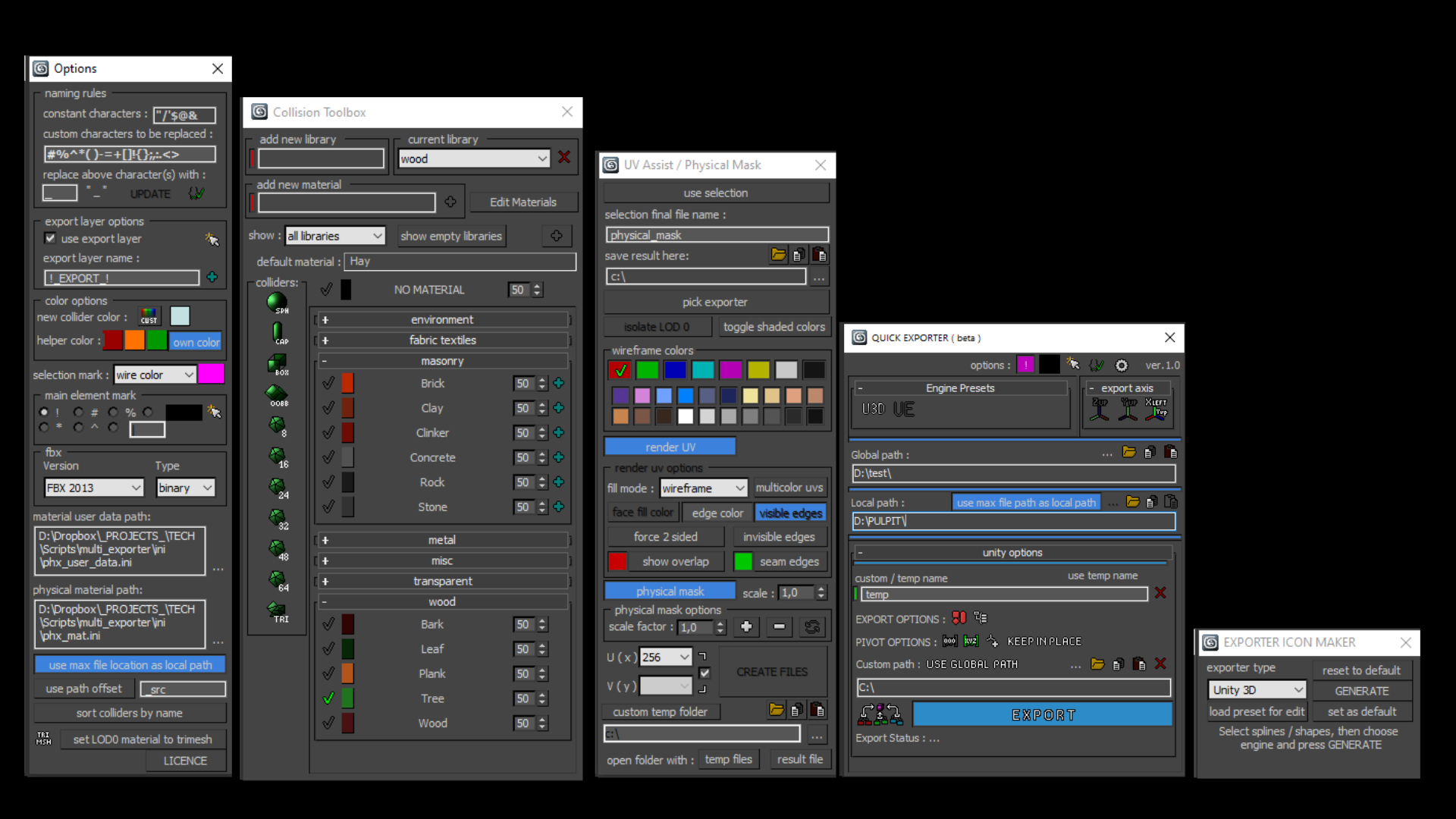
The complete pipeline toolset for Goldsrc, Source and Source 2 featuring a broad array of importers, exporters and general workflows. Added in version 7 are a new Asset Browser and Soundscape Editor and the WallWormBitmap that loads game textures without having to extract them to files on disk.

Mirza Link Manager

4 votes

Updated for 3dsMax 2025

Version 3 is out there!

Import once, update any time

The most popular linker between BIM and 3dsMax has been revamped and significantly improved.

What's new:

miauu's Folder Bookmarks

1 vote

SceneShutter

0 votes

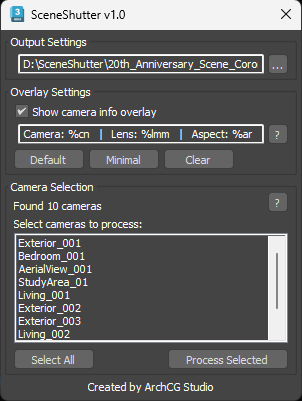
SceneShutter — Camera Viewport Export Tool for 3ds Max
Batch export clean, safe-frame camera previews with overlays and flexible aspect ratios — in seconds.

What is SceneShutter?
SceneShutter is a powerful yet lightweight tool for Autodesk 3ds Max that allows you to quickly export clean, safe-frame viewport previews from multiple cameras — without rendering.

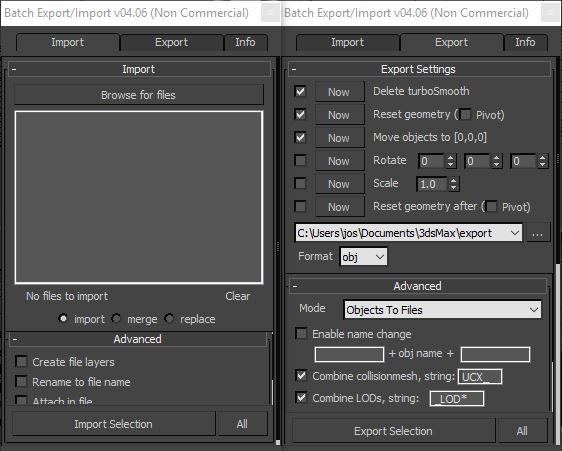
Batch Export/Import

30 votes

This is a free script, for non commercial use.

This is the perfect script to transfer your models from 3ds Max to ZBrush/Unity/UDK/...
Basically it batch exports objects to multiple files.
Supported formats : max, obj, fbx, 3ds, ase, dwf, dwg, dxf, dae, nif.


Extractor

2 votes

Script allowing you to extract into separate Max file and Screenshot all selected meshes in your Max scene.

Just Select, and Extract.

Batch Exporter

9 votes

Bip2root

1 vote

Copies horizontal position of the biped onto the root object and links the biped to the root.

Two useful uses for this script:

  1. Use it to create a root for your biped (using the Static Root option) - so you can place your biped with animation anywhere in the scene without adding extra keyframes. Simply move the root instead of the biped itself.
  2. Some game engines require a moving root to calculate biped's position in the game environment space. With a moving root the biped itself actually stays in place and only the root moves.

Time Range Manager

27 votes

Allows you to edit and save a collection of named time ranges and access them via a dropdown list to change the scene time range based on their time settings.

Ranges are stored as a collection called sets. Multiple sets are then stored as a collection called projects.

The data is stored in INI files and so makes it independent of any maxfile.

There's also a compact option by clicking the thin bar above the ranges list.


See online guide in links section. 


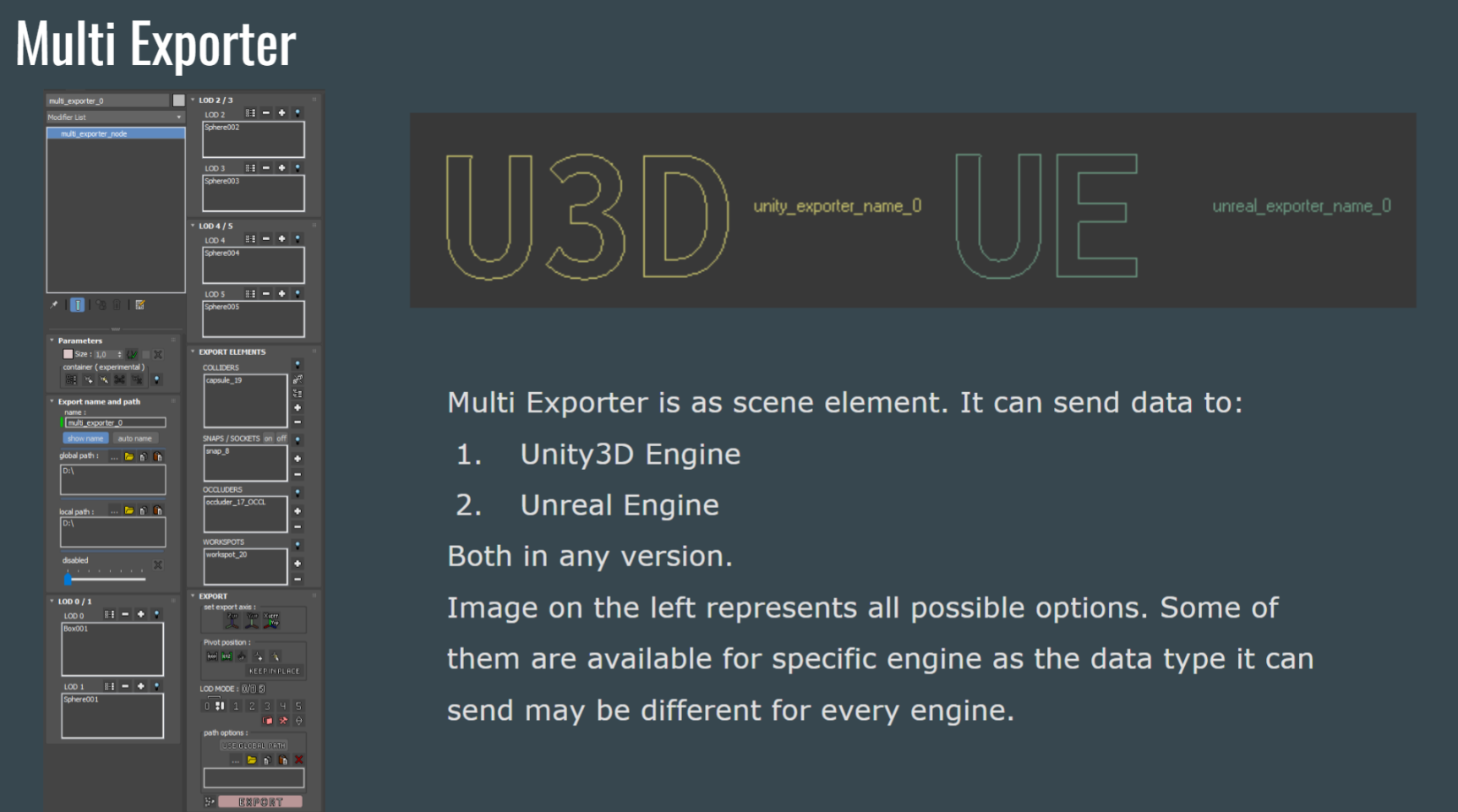
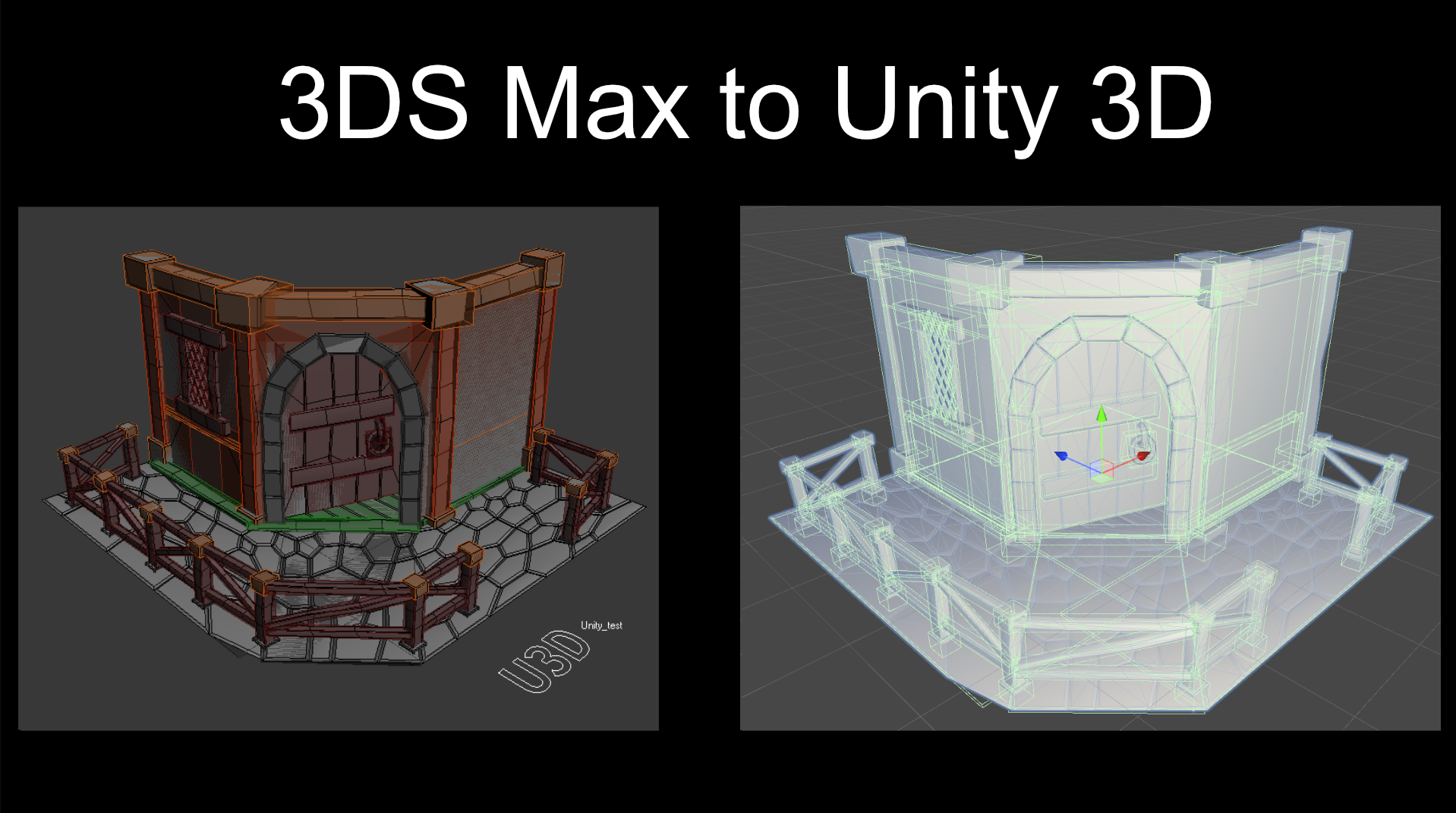
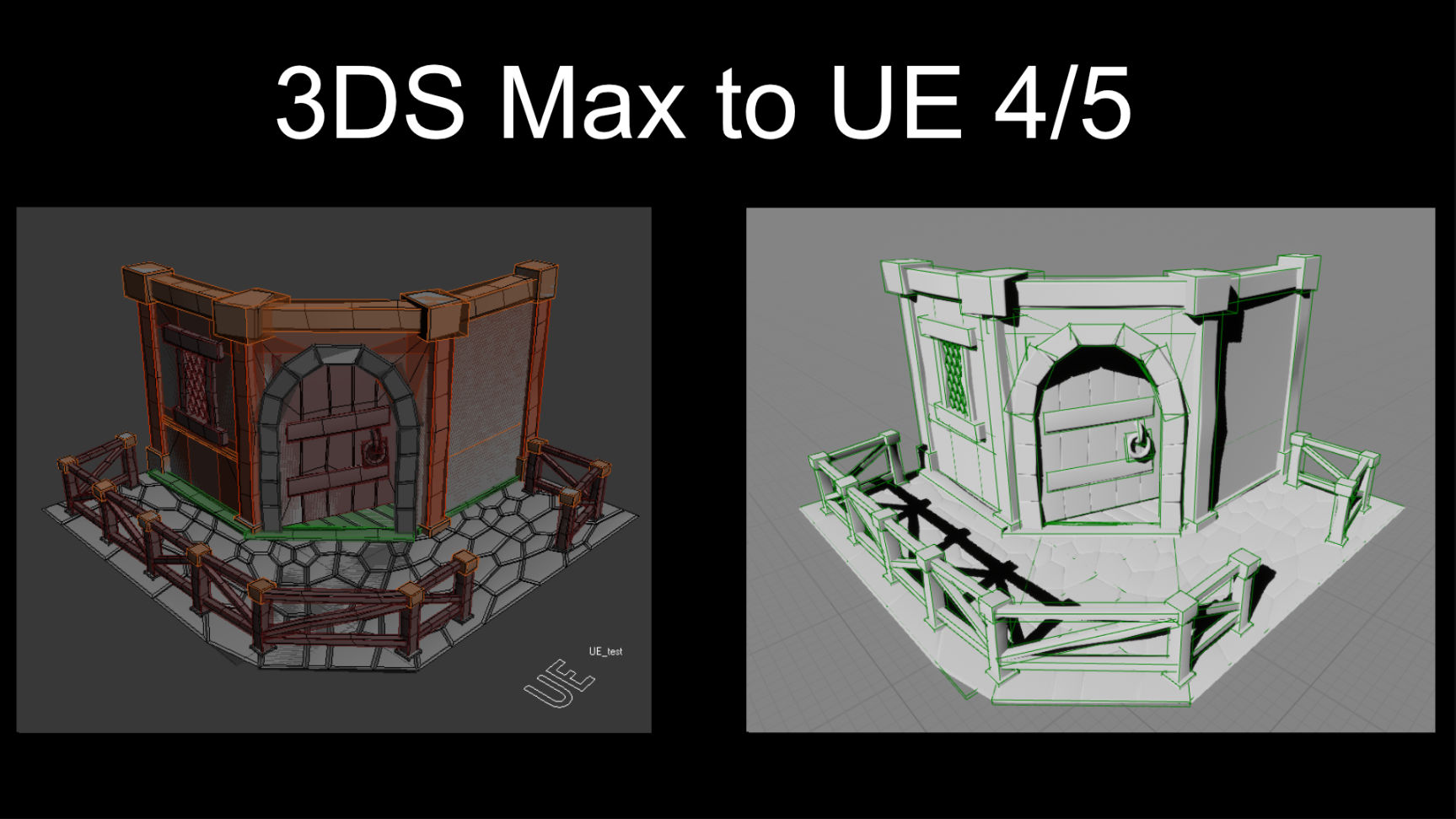
Multi Exporter

2 votes


Syndicate content